Drawing Architectural Plans: Know Their Types and Steps
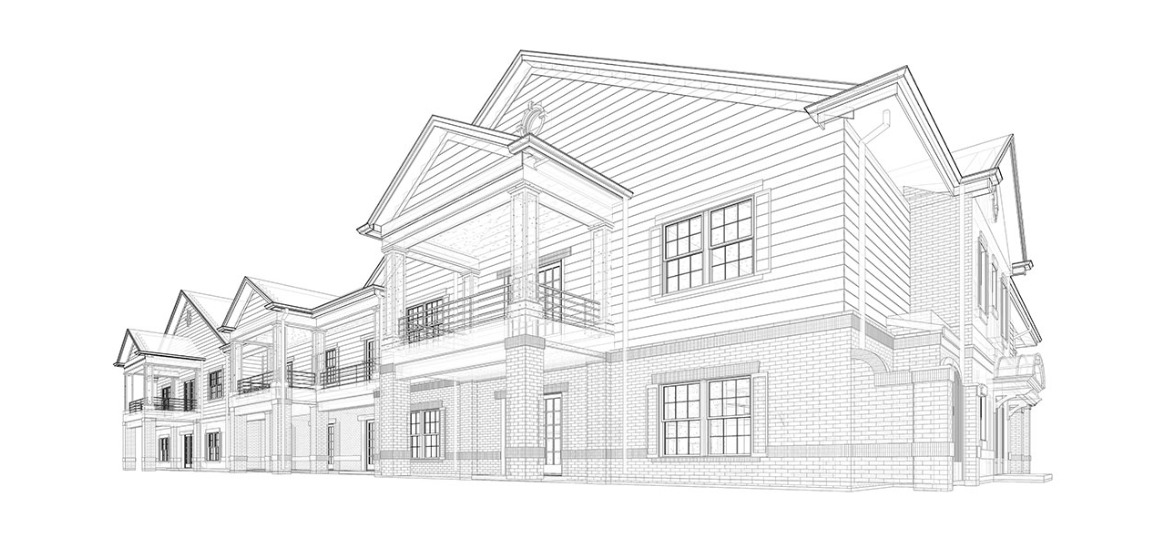
Drawing architectural plans is not just a skill, rather it’s an essential and irreplaceable step in the construction process. Thus, understanding various architectural plans and getting better at drawing is the foundation for architects and engineers, which makes sure buildings turn out just right. To help you with architectural drawing, the following will guide you through a detailed exploration of the types of architectural plans and the steps involved. Now, let’s dive in!
What are Architecture Drawings
Architectural drawings are visual representations that document the design and construction details of a building. Generally crafted by professionals like architects, structural engineers, and electrical engineers, these drawings will use lines, dimensions, proportions, views, annotations, and other standardized design elements. The purpose is to convey crucial information about a building’s appearance, structure, and electrical and plumbing systems.
Architectural drawings are not set in stone and will produce different solutions according to project requirements or stages. But no matter how variable architectural drawings are, they serve as a means of communication for professionals at work, an exact guide on how buildings are designed and constructed. Also, they form bedrocks to ensure that construction projects align with safety, environmental, and industry standards.
Different Types of Drawing Architectural Plans
Architectural drawings, or architectural plan is a general term that includes various specific types of drawings produced in practical applications. To finish drawing architectural plans from beginning to end, you typically need to design the following four drawing types.
Site Plans
A site plan is a detailed illustration of the placement of buildings within an entire property. This drawing commonly highlights architecture location and orientation, nearby roads, parking areas, green spaces, and other features pertinent to the surrounding environment. Moreover, the site plan serves as a crucial tool for communication with local planning authorities, environmental assessments, and compliance with construction regulations.

Floor Plans
Floor plans are detailed drawings showing the layout of each building level. They reveal spatial arrangements of rooms, walls, doors, and windows from a top-down perspective. Meanwhile, floor plans will note dimensions for accurate surface area calculations.
Traditionally confined to two-dimensional renderings, floor plans could be challenging to interpret. Therefore, many architects and engineers have already transitioned to user-friendly CAD software for crafting 3D floor plans. This shift maximizes the visualization of spatial layouts and helps stakeholders figure out room distribution and relationships.

Section Plans
Section plans, often depicting a cross-sectional view of a building, serve to unveil a myriad of visible and hidden structural details such as walls, columns, stairs, and more. As section plans illustrate vertical cuts, they allow for detailed proportional labeling of heights, ranging from the roof to beams, beams to the ground, and even between different floors. This enables viewers to easily comprehend the vertical structure of the building. In the case of multi-story buildings, section plans additionally showcase the functional arrangement and spatial distribution between different floors.

Elevation Plans
An elevation drawing is a vertical view of the exterior of a building, usually including main perspectives such as front elevation, rear elevation, left elevation, and right elevation. The elevation drawing can indicate the orientation of the building. At the same time, it will show the position and layout of the building’s exterior walls, windows, doors, stairs, etc. For some more intricate buildings, decorative ornaments in eaves and window frames will also be noted.
The four types of architectural plans mentioned above are common during the design phase. However, in actual construction, architectural drawings can be further categorized based on project progress into detailed drawings, landscape drawings, and excavation and completion drawings as follows:
- Detail Drawings: Detail drawings are comprised of smaller cross-sectional and close-up views of the building. Their primary purpose is to accurately showcase the building structure, dimensions, and connections.
- Landscape Drawings: Commonly found in residential designs, landscape drawings highlight the external environment and landscape design of a building. They will depict the overall landscape layout and precise dimensions, ensuring the architecture harmonizes with its surrounding environment.
- Excavation Drawings: Excavation drawings provide solutions for channels, pits, shafts, tunnels, and other soil removal to ensure that excavation is in line with geological conditions and regulations.
- As-Built Drawings: As-Built Drawings are used to document any changes and adjustments made during construction, serving as a crucial reference for future building maintenance and expansions.
Not only do the types of drawings vary, but the methods of drawing architectural plans are also gradually transitioning from manual to computer-aided design for enhanced efficiency. In this case, let’s move forward to grasp how to draw architectural plans with CAD software.
How to Create Architecture Drawings with CAD Software
Despite the abundance of CAD software options, it is advisable to choose specialized CAD software for architecture when drawing architectural plans. These desktop applications like ZWCAD hold a distinct advantage due to their efficiency. Beyond providing predefined graphics and components compliant with building standards, they also can automate the drawing process through commands. Even better, you can customize the user interface for your preferences and complete drawing architectural plans as easily and efficiently as the following steps.
Step 1. Create a New File
Click on the “File” or “New” button to create a new drawing in DWG format in your CAD software. After that, set the parameters such as paper size, scale, and units for the drawing.
Step 2. Draw External and Interior Walls
Use the “Line” and “Offset” tools to draw the external walls of the building. Once completed, you can plan the spatial layout. If there is already a basic floor plan, you can import the file into the CAD software. But make sure the file is compatible with your software.

Step 3. Add Furnishings and Doors
If your CAD software supports the “Insert Block” feature, you can directly embed block templates of furnishings like dining tables, sofas, beds, toilets, etc., which are saved on your computer, into the architectural drawing. To add doors and windows, simply insert blocks as well. Now, you just need to make positional and directional adjustments based on your preferences or requirements.

Step 4. Highlight Walls and Every Area
Select all walls to adjust the color and texture to highlight the surfaces. This step can usually be done with the “Hatch” feature. For distinct areas within the room, type in different area names to emphasize.
Step 5. Annotate Dimensions
Once all the drawings above are completed, you can adjust the dimensioning style. You may set lines and numbers to contrasting colors for clear annotations. Afterward, set the scale of the dimensions and type the “DIMLIN” command to select lines and automatically annotate dimensions.

Conclusion
To wrap up, drawing architectural plans relies on a thorough grasp of various drawing types. Proficiency in different drawing specifications is essential to create them with ease. Also, equally crucial is the emphasis on drawing skills for ensuring accuracy and completeness in architectural drawings. Only through continuous improvement and seamless integration of the two aspects can you produce reliable architectural plans consistently.