AutoCAD Copy to Clipboard Failed?8 Ways to Fix

Have you ever encountered the “AutoCAD Copy to Clipboard Failed” error? Generally, copy and paste are time-saving. They allow for the reuse of the same design elements and avoid starting over repeatedly. By contrast, the problem will increase the time spent due to the high number of layout tabs and layer controls. This can pose a challenge to the design workflow. But rest assured that this issue is resolvable. To help you out, this article has compiled 8 effective solutions. Without further ado, let’s dive in and try to fix the AutoCAD Copy to Clipboard not working.
Why Does AutoCAD Fail to Copy from Clipboard
The correct method for resolving the AutoCAD Copy to Clipboard Failed issue is important, but you also should not neglect the reasons behind it. Only by figuring out the root cause can you prevent it from happening again. If you are unable to copy AutoCAD content to the clipboard, try to begin by checking the following four reasons.
- Insufficient Computer Memory: Clipboard programs are usually installed on the system drive when Windows is installed. Insufficient memory in the C disk drive will impact the operation of the clipboard.
- Inadequate Clipboard Memory: Clipboard functions as a temporary storage area in computer memory. When the clipboard holds a sizable image or a substantial amount of text, it occupies an amount of memory and causes difficulties in copying and pasting.
- Incompatibility with AutoCAD: The lack of third-party extensions or proxy objects in AutoCAD can cause design elements to be incompatible with copy-pasting. Also, AutoCAD versions released after 2020 no longer support virtualized environments, which is another factor to consider when facing copy issues.
8 Common Solutions to Fix AutoCAD Copy to Clipboard Failed
Although AutoCAD is not user-friendly CAD software for beginners, people who use this software are mostly experienced, issues like “AutoCAD Copy to Clipboard Failed” often have something to do with the computer operation, service usage, and the software itself. The following 8 common solutions are aimed at addressing these three aspects to help you resolve the copy failure issue in AutoCAD.
Method 1. Restart Your Computer
Restarting the computer is a silver bullet for technical issues with electronic devices. When faced with the AutoCAD Copy to Clipboard Failed error, the first step to consider is saving the file and then restarting the device. This helps clear temporary files, free up memory, and close conflicting processes on the computer. If the copying problem is not caused by more complex issues, the basic way is usually effective.
Method 2. Clear the Clipboard
As mentioned earlier, insufficient clipboard memory will make a dent in clipboard operation. To resolve this, you can open the “Setting” app, locate “Clipboard,” and select the “Clear Clipboard Data” option to erase the graphics and text previously copied to the clipboard. Afterward, you can attempt to copy AutoCAD to the clipboard again. If this method doesn’t work, you can also try:
- Duplicate the file to an alternative location, such as the desktop or a USB flash drive.
- Consider dividing files into smaller ones and copying them one at a time if you’re copying a big file.
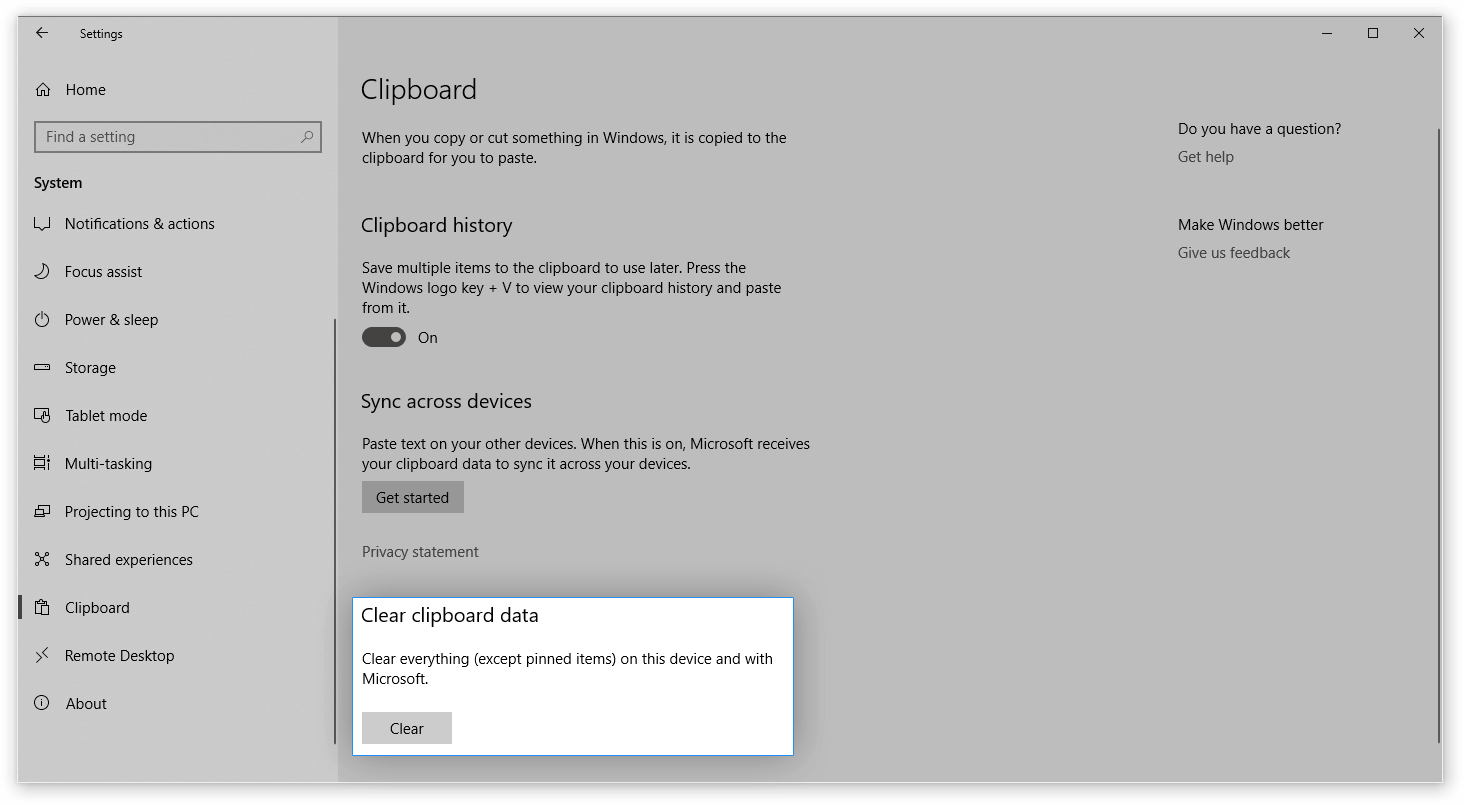
Image name: clear-the-clipboard
Alt name: Clear the Clipboard
Method 3. Free Up Computer Memory
The clipboard is integral to the computer system and consumes computer memory. To ensure sufficient computer memory, it’s essential to have ample space on the C drive. You can check the storage status of the C drive by opening “File Explorer” or “My Computer” on your computer. If the C drive is marked in red, the issue with the AutoCAD copy may be due to insufficient computer memory. Try the following steps to free up C drive memory:
- Tap the “Windows” icon on your keyboard. In the search box, type “Disk Cleanup” and click it.
- A window will prompt. Choose C drive and tick on the files you want to delete.
- Return to “File Explorer” or “My Computer”, select the C drive, and refresh it.
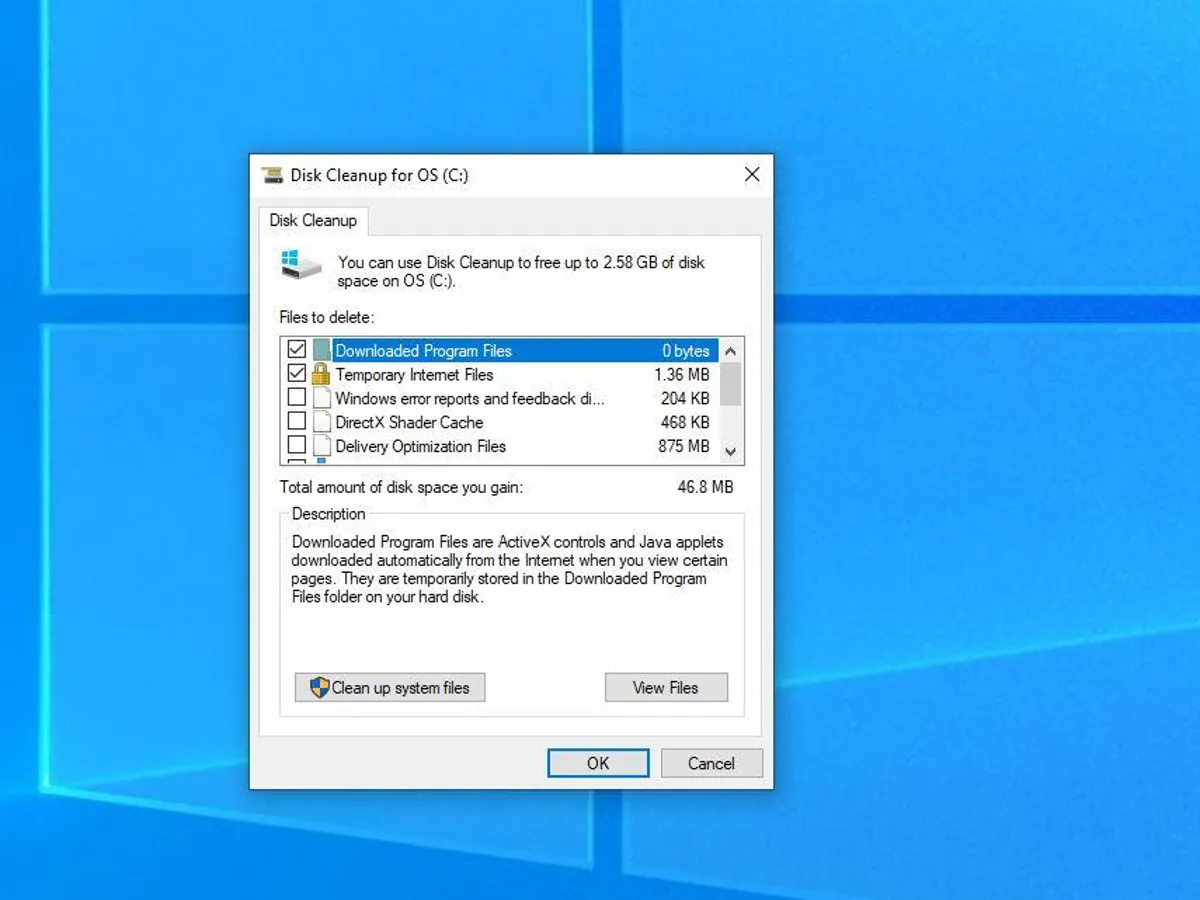
Image name: free-up-computer-memory
Alt name: Free Up Computer Memory
Method 4. Recreate the Drawing File
If the computer-related solutions above do not work, the inability to copy AutoCAD to the clipboard may be more related to AutoCAD itself. In this case, you can try to recreate a drawing file in the first place. This process can help clean up any corrupted elements in the original file, allowing for a complete copy.
- Create a blank drawing from standard DWT.
- Use the “INSERT” or “CLASSICINSERT” command to import the damaged drawing.
- Explode the resulting block. And enter “LAYOUT” to choose Template.
- Open the original drawing file and import the necessary layouts.
- Use “WBLOCK” to extract the drawing into the new file.
Method 5. Save Drawing as AutoCAD DWG Files
Exporting the drawing to DWG format also helps address copy-related issues. It essentially creates a new file and regenerates the file structure. However, please be aware that before proceeding with this operation, you’d better create a backup of the original file to guard against potential issues.
- Use “AUDIT” and “-PURGE” (command line), option: “R” for RegApps to clean the drawing.
- Use the command: “-EXPORTTOAUTOCAD” to export the drawing to “AutoCAD”-DWG format.
Method 6. Install Missing Proxy Objects
Proxy objects are created by third-party applications or AutoCAD plugins, and they may contain customized information and features. In certain situations, the loss or corruption of the definition or support files for proxy objects can lead to difficulties in normal copy and paste. So installing missing proxy objects is often a common troubleshooting measure in AutoCAD when facing such issues. Here is how it works.
- Log in to your Autodesk Account via a browser.
- In the sidebar, find “All Products and Services” > “AutoCAD”.
- Check and download any Object Enabler under the Plug-ins tab.
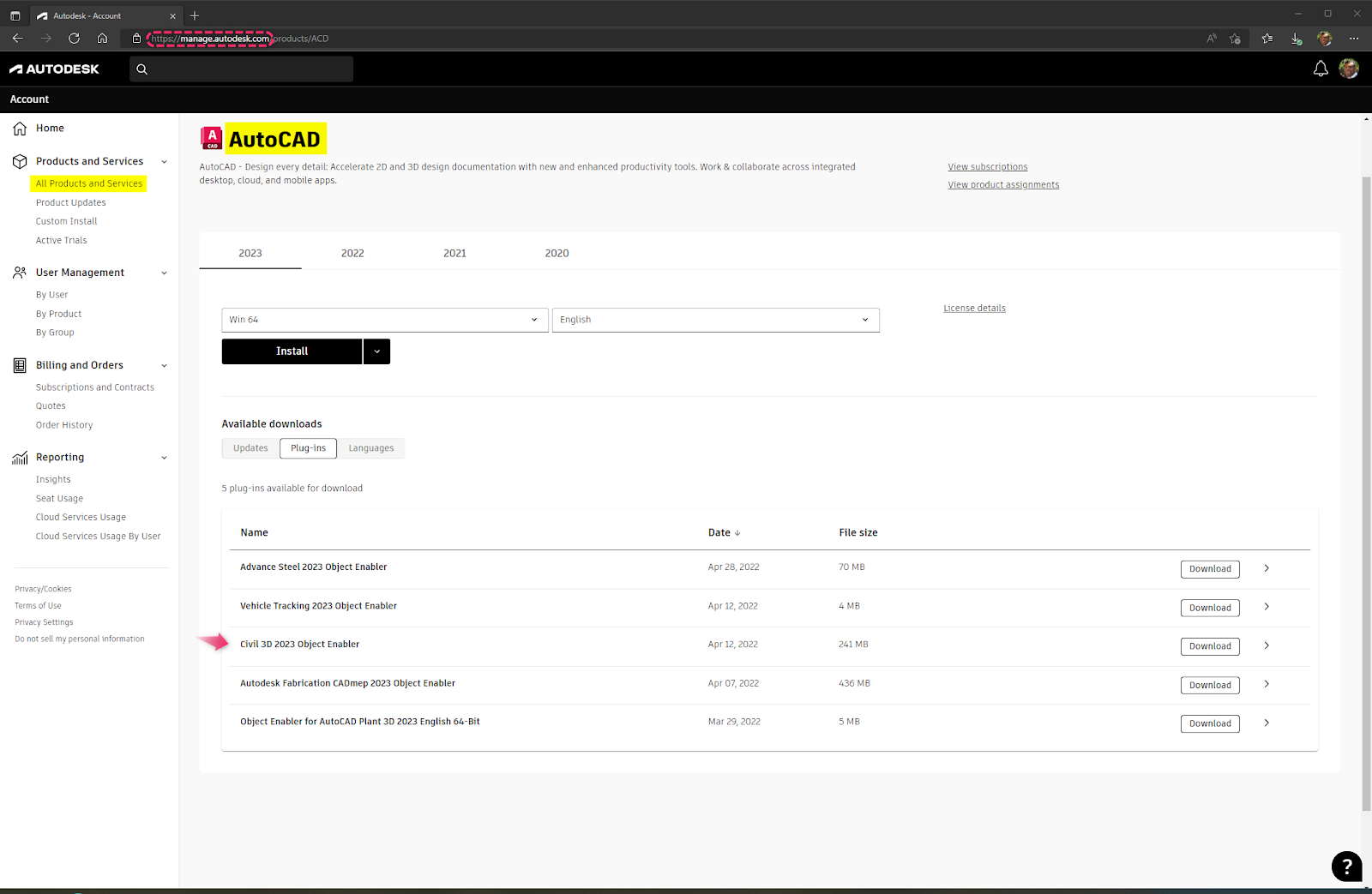
Image name: install-missing-proxy-objects
Alt name: Install Missing Proxy Objects
Here is recommended to download C3D Object Enabler, which is proven effective. But a cost will come with the installation. Because AutoCAD becomes sensitive to AEC (Architectural, Engineering, and Construction) objects. Also if those objects are numerous or complex, AutoCAD slows down to a crawl.
Method 7. Ensure VDI Environment Compatibility
If you are running AutoCAD on Virtual Desktop Infrastructure (VDI), you should consider whether the AutoCAD Copy to Clipboard Failed issue is due to compatibility between the software and VDI. AutoCAD products, including AutoCAD LT, can be used with VDI versions up to 2019 or earlier. And the recommended VDI by Autodesk is Citrix XenApp 7.6 or Citrix XenDesktop 7.6. If your VDI version differs, check if the VDI environment supports Autodesk products.
Method 8. Seek AutoCAD Alternatives
The above seven methods should effectively address the AutoCAD Copy to Clipboard Failed problem. However, this issue is not isolated and may recur due to device or software configuration errors. Therefore, it might be prudent to have an AutoCAD alternative for standby.
ZWCAD is a highly competitive AutoCAD alternative. Its interface and operation are similar to AutoCAD and support customization. This makes it easier to adapt when switching software. And you can also adjust and extend its features according to specific design requirements. Additionally, ZWCAD supports multiple file formats, including AutoCAD’s DWG format.
Better still, ZWCAD delivers superior performance. Thanks to CPU and GPU acceleration, ZWCAD enables faster and more stable production of both 2D and 3D drawings. Moreover, it provides a perpetual purchase option, which makes it much more cost-effective than AutoCAD. If you’re grappling with the AutoCAD Copy to Clipboard Failed problem, why not give ZWCAD a try? You may discover more surprises in software use.
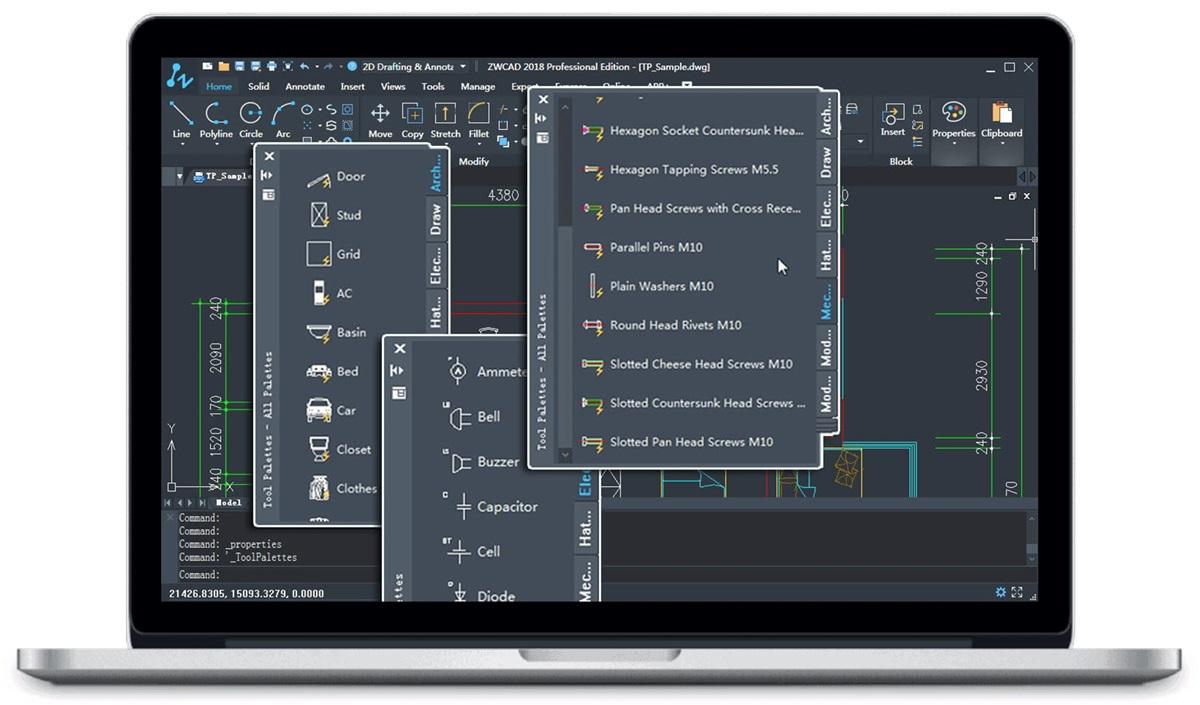
Image name: zwcad-interface
Alt name: ZWCAD Interface
Conclusion
To wrap up, when encountering computer technical issues like the AutoCAD Copy to Clipboard Failed error, it’s advisable to explore the root causes within the device, services, and the software itself. These reasons can often bring about a positive resolution. As such an issue could reoccur, all the solutions are not once-and-done. So a perfect AutoCAD alternative like ZWCAD prepared is not only necessary but can also accelerate workflow. Better try than never.