Unlocking the Potential of Apple Pencil: A Comprehensive Guide
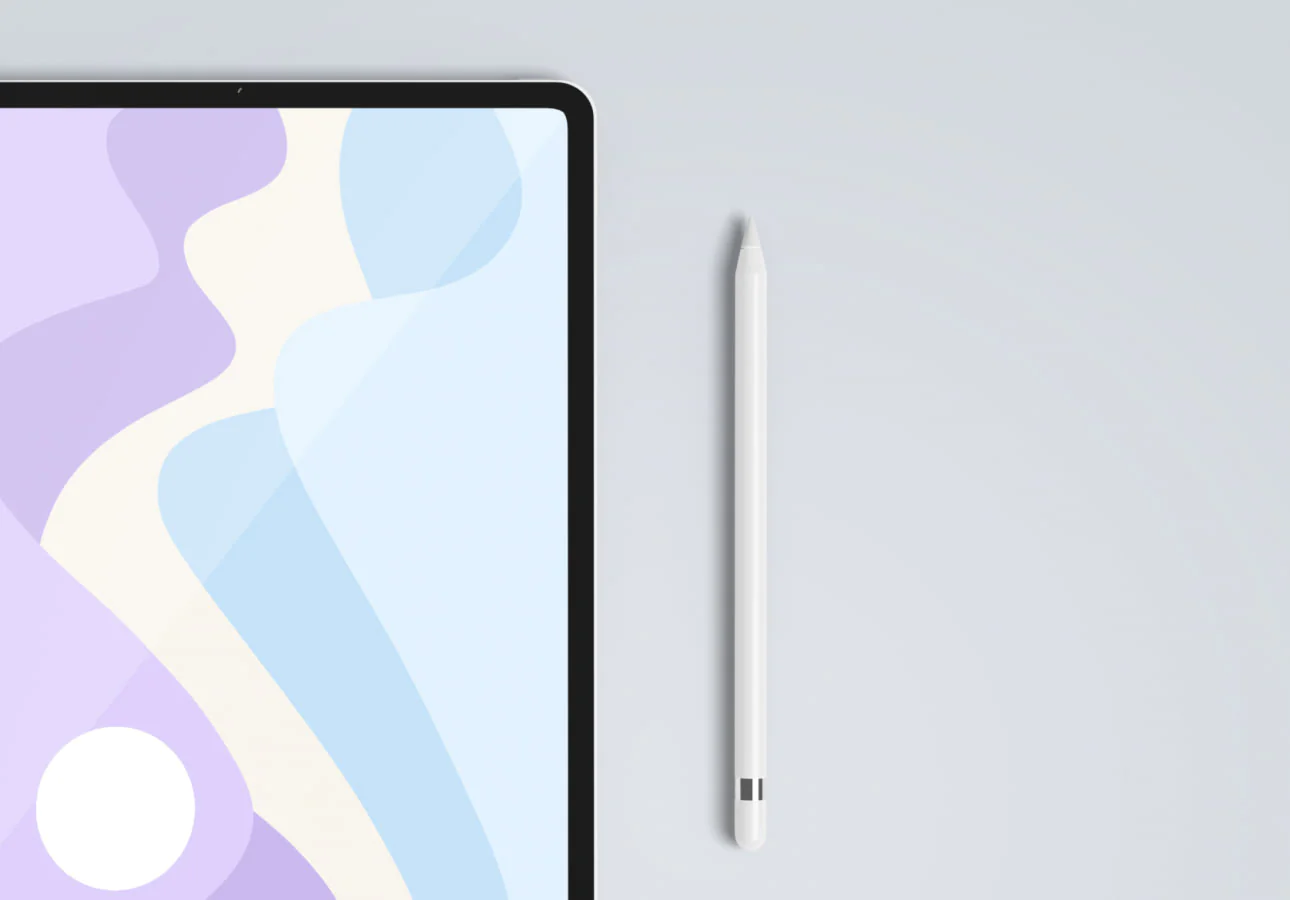
Apple Pencil is a revolutionary tool that has transformed the way we interact with our iPads. With its precise and responsive stylus, it has become an essential accessory for artists, designers, students, and professionals alike. However, many users are still unaware of the full potential of this remarkable device. In this comprehensive guide, we will explore the various features and functionalities of Apple Pencil, and how you can unlock its true potential.
The Basics: Getting Started with Apple Pencil
Before we dive into the advanced features of Apple Pencil, let’s start with the basics. To pair your Apple Pencil with your iPad, simply connect it to the charging port of your device. Once connected, your iPad will automatically detect and pair with the Apple Pencil. You can check the battery level of your Apple Pencil by swiping down from the top-right corner of your iPad screen and accessing the Control Center.
Don’t let technical hurdles hold you back from experiencing the benefits of this remarkable tool; trust Converged Devices to help you get started on your creative and productive journey with Apple Pencil and your iPad.
Taking Notes and Annotations
Apple Pencil is not only a great tool for creating art but also for taking notes and annotations. With the Notes app on your iPad, you can easily jot down your ideas, make sketches, and annotate documents. Simply open the Notes app, create a new note, and start writing or drawing with your Apple Pencil. You can also use the built-in ruler feature to draw straight lines and shapes.
Enhancing Productivity with Apple Pencil
Apple Pencil can significantly enhance your productivity by allowing you to perform various tasks more efficiently. One such task is navigating through your iPad interface. With Apple Pencil, you can easily swipe, scroll, and tap on your iPad screen, providing a more precise and natural way of interacting with your device.
Unleashing Your Creativity
If you are an artist or designer, Apple Pencil opens up a world of possibilities for creating stunning digital artwork. With its advanced tilt and pressure sensitivity, you can achieve a level of precision and control that was previously only possible with traditional art tools.
Collaboration and Communication
Apple Pencil is not just a tool for individual creativity but also for collaboration and communication. With apps like Microsoft PowerPoint and Keynote, you can easily annotate and highlight slides during presentations. This allows you to engage your audience and convey your ideas more effectively.
Customizing Apple Pencil Settings
To fully customize your Apple Pencil experience, head to the Settings app on your iPad. Under “Apple Pencil,” you can adjust settings such as double-tap functionality, enabling or disabling palm rejection, and modifying pressure sensitivity levels to suit your preferences and workflow.
Third-Party Apps and Compatibility
Apple Pencil works seamlessly with a wide range of third-party apps, extending its capabilities beyond the pre-installed ones. Many popular drawing and note-taking apps, such as Procreate, Notability, Adobe Illustrator, and GoodNotes, are optimized for Apple Pencil and offer advanced features tailored to artists and professionals.
Handwriting Recognition
With the Apple Pencil, your handwriting can be accurately converted into text in various apps. This feature is particularly useful for students taking notes or professionals drafting documents on their iPads.
Editing and Markup
Apple Pencil simplifies the editing and markup process. Whether it’s editing documents, proofreading papers, or adding comments to PDFs, Apple Pencil provides a precise tool to make changes easily.
Digital Signatures
Apple Pencil enables effortless digital signing of documents. In apps like Adobe Acrobat, you can add your signature directly with the Apple Pencil, saving time and paper.
Creating Annotated Screenshots
When taking screenshots on your iPad, you can use Apple Pencil to annotate and highlight specific areas or add comments before sharing the image with others.
Gestures and Shortcuts
Apple Pencil supports various gestures and shortcuts that can streamline your workflow. For example, you can double-tap the Apple Pencil to switch between tools or activate specific functions within apps.
Using Apple Pencil with iPadOS Features
Apple Pencil seamlessly integrates with iPadOS features such as Split View and Slide Over, enabling multitasking and productivity enhancements. You can use the Apple Pencil to interact with multiple apps simultaneously and switch between them effortlessly.
Maintaining and Protecting Your Apple Pencil
Proper care and maintenance of your Apple Pencil are crucial to ensure its longevity and optimal performance. Regularly clean the Pencil’s tip and body to prevent any dust or debris from affecting its functionality. Additionally, consider using a protective case or sleeve to prevent accidental damage.
Conclusion
In conclusion, the Apple Pencil is a game-changer that brings a new level of precision and creativity to iPad users. From note-taking and annotations to digital art and productivity enhancements, its capabilities are vast and versatile. By exploring its features, customizing settings, and utilizing third-party apps, users can unlock the full potential of the Apple Pencil. Whether you are an artist, student, professional, or simply looking to make the most out of your iPad, the Apple Pencil is a must-have tool that opens up a world of possibilities for creativity, productivity, and collaboration. So, embrace the power of the Apple Pencil, and let your imagination soar as you unleash its true potential on your iPad.