DIY Electronics Repairs: PS4 Controller not Charging No lights
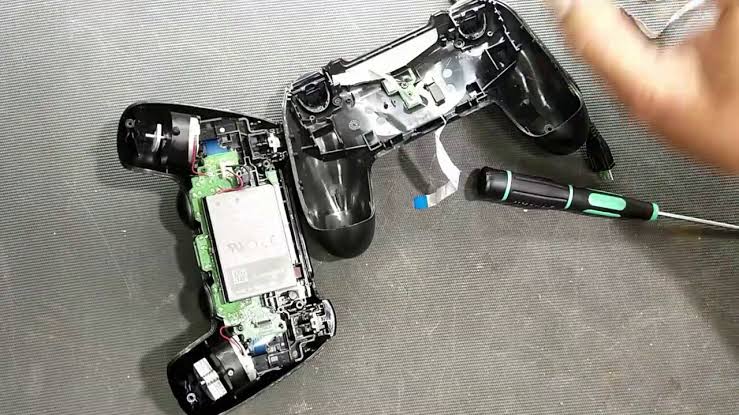
The PS4 controller is the lifeline of any PlayStation 4 gamer’s experience. With those buttons, thumbsticks, and LED lights, you can embark on epic adventures and engage in heart-pounding battles. A controller that refuses to charge, or worse, does not display any lights, can cause frustration. This problem can cause gaming downtime.
For those inclined to take matters into their own hands, our comprehensive Multimeter Testing Guide can be a game-changer. This guide explains how to fix the PS4 Controller not charging and No lights issues through DIY electronics repair. By not rushing to the repair shop, you’ll be able to save some precious gaming time and money.
Contents
- 1 What is a PS4 Controller, and how does it work?
- 2 Common PS4 Controller Charging Issues
- 3 What to do when PS4 Controller not Charging No lights?
- 4 Checking the Charging Cable and Power Source
- 5 Inspecting the Controller for Visible Damage
- 6 Testing with a Different Device
- 7 Troubleshooting Steps
- 8 Step 1: Cleaning the Charging Port
- 9 Step 2: Resetting the Controller
- 10 Step 3: Inspecting and Replacing the Battery
- 11 Step 4: Testing with a Different Cable and Charger
- 12 Step 5: Updating Firmware
- 13 Preventive Maintenance Tips
- 14 1-Regular Cleaning and Care
- 15 2-Avoid Overcharging
- 16 3-Store Properly
- 17 4-Use Genuine Accessories
- 18 5-Keep Firmware Up to Date
- 19 Conclusion
What is a PS4 Controller, and how does it work?
The PS4 controller, officially known as the DualShock 4, is a handheld gaming controller designed for the PlayStation 4 gaming console. It features a variety of buttons and input methods, including thumbsticks, a directional pad, action buttons, triggers, and a touchpad. The controller connects wirelessly to the console via Bluetooth technology, allowing players to interact with games and navigate menus.
It also has a built-in motion sensor and a light bar for tracking and identifying players. A rechargeable battery powers the DualShock 4 and can be charged using a USB cable. It provides a crucial interface between the player and the gaming experience, translating physical inputs into in-game actions and commands.
Common PS4 Controller Charging Issues
Charging your PS4 controller should be a simple task, but when issues arise, it can frustrate gamers. These problems disrupt your gaming sessions and can impact your overall gaming experience.
1-Frustration of Charging Woes
Gamers often encounter the vexing situation of plugging in their PS4 controller, only to find that it doesn’t charge. This issue can lead to an abrupt halt in your gaming session, leaving you feeling perplexed and irritated.
2-Impact on Gameplay
Charging issues aren’t just an inconvenience; they can significantly affect your gameplay. A controller that’s low on battery power or refuses to charge can lead to input lag, disconnections, or even complete shutdowns during critical moments in your game. These interruptions can be game-changing, especially in online multiplayer battles.
3-The Importance of LED Lights
The LED lights on your PS4 controller serve as essential indicators. They display the controller’s charging status and provide feedback during gameplay. When your controller displays no lights at all, it’s a clear sign that something is amiss and needs your attention. In this section, we’ll delve into the causes of these issues and explore solutions to get your controller back in the game.
What to do when PS4 Controller not Charging No lights?
Identifying the root cause of your PS4 controller’s charging and light display issues is crucial before beginning repairs. You can ensure you address the problem effectively by taking a systematic approach to diagnosis.
Checking the Charging Cable and Power Source
Start your diagnosis by inspecting the basics. Often, the problem may lie with the charging cable or the power source. Ensure the USB cable you’re using is in good condition and firmly connected to the controller and power source. Also, check that the power source, whether it’s the PS4 console, a wall adapter, or a USB hub, is functioning correctly. Sometimes, a loose connection or a faulty cable may be the culprit, causing your controller not to charge.
Inspecting the Controller for Visible Damage
A visual inspection of your PS4 controller is the next step. Examine the exterior of the controller for any signs of physical damage. Look for cracks, frayed wires, or loose components. Pay special attention to the USB port where you plug in the charging cable, as damage here can impede proper charging. If you spot any visible issues, addressing them before proceeding with further diagnostics is crucial.
Testing with a Different Device
To rule out issues with your PlayStation 4 console, connect your controller to another compatible device, such as a PC or another PS4 console if available. This step helps determine whether the problem lies with the controller or the console. If your controller charges and functions correctly on a different device, the issue is likely related to your PS4 console, and you may need to explore console-specific troubleshooting steps. If the problem persists across other devices, it’s more likely a controller-specific issue that you can further diagnose and repair.
Troubleshooting Steps
Now that you’ve diagnosed the issue with your PS4 controller’s charging and light display, it’s time to roll up your sleeves and take action. This section will guide you through the essential troubleshooting steps to get your controller back in working order.
Step 1: Cleaning the Charging Port
A simple yet effective initial step is to ensure the charging port on your PS4 controller is clean and free of debris. Over time, dust and lint can accumulate in the port, hindering proper charging. To clean it, gently blow compressed air into the port or use a soft brush to remove any obstructions. This easy maintenance task can often resolve charging issues without any further intervention.
Step 2: Resetting the Controller
If cleaning the charging port doesn’t solve the problem, consider resetting your PS4 controller. This can help resolve minor software glitches that may be causing the charging and light display issues. To reset the controller, use a small paperclip or a similar tool to press the reset button located on the back of the controller near the L2 shoulder button. After resetting, try charging the controller again to see if the issue persists.
Step 3: Inspecting and Replacing the Battery
When other troubleshooting steps don’t yield results, it’s time to delve deeper. The internal battery of your PS4 controller can degrade over time, leading to charging problems. Inspect the battery if you’re comfortable opening your controller (following manufacturer guidelines). If it appears swollen, discolored, or damaged, it’s a clear sign that it needs replacement. Purchase a compatible replacement battery and carefully follow the installation instructions to ensure it’s securely in place.
Step 4: Testing with a Different Cable and Charger
To eliminate the possibility of a faulty charging cable or power source, test your PS4 controller with an alternative cable and charger. Use a high-quality USB cable and a reliable power source, such as a different USB port on your console or a known working wall adapter. Sometimes, a damaged or low-quality cable can cause charging issues. If your controller charges normally with a different cable and charger, you’ve identified the source of the problem.
Step 5: Updating Firmware
Occasionally, firmware issues can contribute to charging and light display problems in PS4 controllers. Check if there are any available firmware updates for your controller. Manufacturers often release updates to fix bugs and improve performance. Connect your controller to your PS4 console, navigate to the settings menu, and look for the option to update the controller’s firmware. If an update is available, follow the on-screen instructions to install it, as this may resolve the issue. Taking preventive maintenance tips is important when you know the PS4 Controller not Charging No lights
Preventive Maintenance Tips
Preventing future charging and light display issues with your PS4 controller is essential for uninterrupted gaming enjoyment. These preventive maintenance tips will help extend the life of your controller and keep it in top shape.
1-Regular Cleaning and Care
Make it a habit to clean your PS4 controller regularly. Use a soft, lint-free cloth to wipe down the controller’s exterior, including the buttons and thumbsticks. Avoid using abrasive materials or liquids that could damage the controller’s surface. Cleaning keeps your controller looking good and prevents dust and debris from accumulating in the charging port, which can lead to charging problems.
2-Avoid Overcharging
While it’s tempting to leave your controller plugged in continuously, avoiding overcharging is essential. Overcharging can damage the battery and lead to reduced battery life over time. To prevent this, unplug your controller once it’s fully charged and avoid leaving it connected to the charger for extended periods. Most modern controllers have built-in protection to prevent overcharging, but disconnecting them when not in use is still a good practice.
3-Store Properly
When you’re not using your PS4 controller, store it in a cool, dry place away from direct sunlight and extreme temperatures. Exposing the controller to excessive heat or cold can affect its battery and overall performance. Additionally, consider investing in a controller case or protective cover to shield it from dust and accidental damage when not in use.
4-Use Genuine Accessories
Always use genuine or high-quality charging cables, wall adapters, and accessories when charging your PS4 controller. Cheap, low-quality accessories can cause charging issues and potentially damage your controller. Manufacturers design their accessories to work seamlessly with their products, so it’s worth investing in the right ones for the job.
5-Keep Firmware Up to Date
Stay vigilant about firmware updates for your PS4 controller. Manufacturers release updates to address known issues, improve compatibility, and enhance performance. Periodically check for updates and follow the instructions to ensure your controller runs the latest firmware version. This can help prevent future problems and ensure your controller operates at its best.
Conclusion
In gaming, your PS4 controller is your faithful companion, and keeping it in peak condition is crucial for uninterrupted adventures. When faced with charging issues and mysterious light malfunctions, remember that a systematic approach to diagnosis and the right troubleshooting steps can often revive your controller. Regular maintenance and preventive measures further ensure its longevity. By adhering to these guidelines, you can enjoy countless hours of gaming excitement without the worry of technical hiccups, all while saving your hard-earned money on unnecessary repairs. Your confusion is now clear regarding the PS4 Controller not Charging No lights.